Showing posts with label Windows 7. Show all posts

6 June 2019

Top 9 Simple Things Every Computer User Should Know How to Do


10.    We all know we should back up our computers, but it’s always one of those things that you’ll set up “one day”. 

Setting up a backup only takes minutes, though, so you can do it right now and forget about it until you need it—and when you do need it, you’ll be glad you set it up. If you’re just backing up to an external drive, you can just use the simple tools built in to your computer, like Windows Backup or Apple’s Time Machine. However, that’ll only keep you safe if your computer fails. If you lose your home in a fire, get all your gear stolen, or experience any other kind of disaster (God forbid), you’ll have lost all those important documents, family photos, and other files forever. So, we recommend using a service like CrashPlan to back up your computer online. That way, it can back up no matter where you are, and that data will be safe no matter what happens to your hardware.
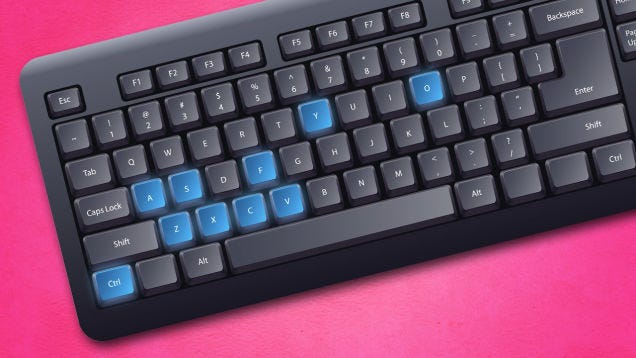


09.     The great thing about computers is that they can do a lot of things much faster than a human. Say you’re looking for a specific word on a web page. Instead of scanning it yourself, all you need to do is press Ctrl+F and type the word you’re looking for. There are mountains of shortcut like this, from pressing Ctrl+S to instantly save the file you’re working on, Ctrl+P to print it out, or Ctrl+T to open a new tab in your web browser. It may seem like more trouble than its worth at first, but after you use a shortcut one or two times, you’ll wonder why you ever did anything with the mouse. Check out our list of six shortcuts everyone should know, as well as our shortcut of the day series for even more tricks.
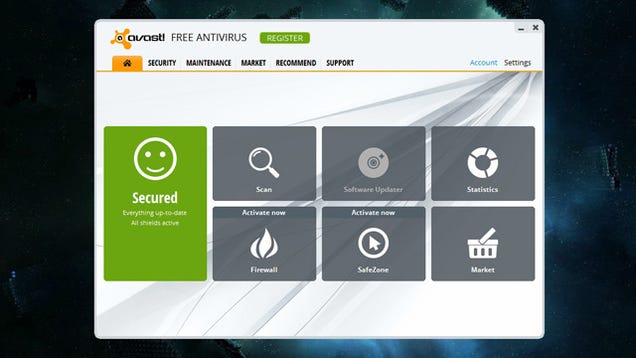

 08.       Windows users have long known the pain of viruses and other malware, but the good news is it’s pretty easy to avoid. First, we recommend learning the difference between viruses, trojans, and other kinds of attacks, as well as the myths surrounding them. Then, install some good, free antivirus software to protect yourself (Avast is our current favorite, but Bitdefender is a slightly less nerdy, equally secure option). You can even get antivirus for your Android phone, if you so choose. But in the end, the best way to avoid viruses is to use common sense: don’t open links that look suspicious, don’t install programs from untrusted sources, and if a window pops up saying your computer’s infected, make sure it’s actually your antivirus software saying that and not a fake web page.


07.   Understanding routers, modems, and the other things that make up your network can seem daunting, but there are a few basics that can fix most problems that come your way. Does your router constantly need resetting? Make sure it isn’t overheating or clogged with traffic. Is your Wi-Fi speed and range less than ideal? Use one of these tricks to give it a boost. If you experience more serious problems, you can probably fix them yourself too. Check out our complete guide to knowing your network for more info—it’s got everything you need to know, from buying a router to setting up your network and more.


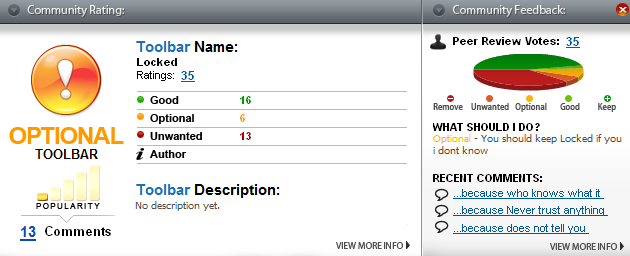
06.     Ever wonder how that Yahoo toolbar got on your system, or why there’s so much junk installed on your brand new machine? Crapware is a huge problem in the world of Windows, but that doesn’t mean you have to take it lying down. With the right tools and a little know-how, you can avoid that crapware forevermore: just uninstall the stuff that came with your system, and learn the ways companies trick you into installing stuff you don’t want. You’ll keep that system nice and clean, and beat the scammers at their own game.


05     Ever go out with your laptop and realize you left something important on your computer at home? One way to solve this problem is to use a service like Dropbox, so your files are with you everywhere you go. However, it’s also handy to know how to use your home computer from anywhere. With a simple app like TeamViewer, you can log into your home computer from another machine and use it as if you were sitting right at your desk—whether you just need to grab a quick file or access a program you don’t have elsewhere.


04     Computer maintenance has gotten really confusing over the years. Between defragging, cleaning up temporary files, and other tasks, it’s almost like trying to maintain a car. Luckily, it’s gotten a lot easier in recent years: you only really need to do one or two things to keep your computer running fast and smooth. Check out our guides to Windows maintenance and Mac maintenance for more info and keep your PC running like new. And if your phone’s feeling a little sluggish, we have guides for iOS and Android, too.


03.    So you’ve got some files you want to give to your friend sitting next to you, but your flash drive has mysteriously gone missing. Well guess what? You don’t need it! It’s very easy to transfer a file between two computers over your wireless (or wired) network, whether it’s between you and a friend or between multiple computers you own. Here are our favorite ways to share files with a nearby computer, but if you want to share them between multiple computers in your house, Windows’ Homegroup feature is a great option. Of course, this is where the aforementioned Dropbox app can come in handy.



09.     Unfortunately, the internet isn’t always a safe place, which means everyone needs to make sure they’re keeping their personal information safe. Make sure you use strong passwords, remove personal information from photos and other files, and never use open public Wi-Fi networks without protection. Keeping your personal information safe is easier than it sounds, and if you aren’t sure what to do, check out our checklist for staying safe online. You’d be surprised how unsafe you were being before.
17 August 2012

Why Won't Windows Delete a File?


Has Windows ever prevented you from deleting a file? This is one of those mysteries that can make you throw up your hands and cry, "Really, Windows? Really?" After all, deleting a file isn't brain surgery; it's computing at its most basic level. So why is your system balking at such a simple task?
It's for your own protection--most of the time, anyway. If Windows won't delete a file or folder, that's usually because some application or operating system process is accessing it. If you were to delete the item while it's "in use" (even if you're not using it directly), an app or even Windows itself could crash.
Nine times out of ten, the best way to deal with a file or folder that won't go willingly is to reboot your PC. Then, before you run any programs, try deleting that file again. It should go quietly.

16 August 2012

How to Specify a Location for Saving Downloads


Have you downloaded files yet been unable to find them afterward? The Mystery of the Missing Downloads usually leads you back to your Web browser. Internet Explorer (version 8, anyway) is kind enough to ask where you want to save every file before downloading it. Chrome and Firefox, however, make the choice for you by default, which leaves a lot of users scratching their heads after a download is complete.
It's easy to make either of those browsers a little more cooperative, though.

Step by Step: Firefox

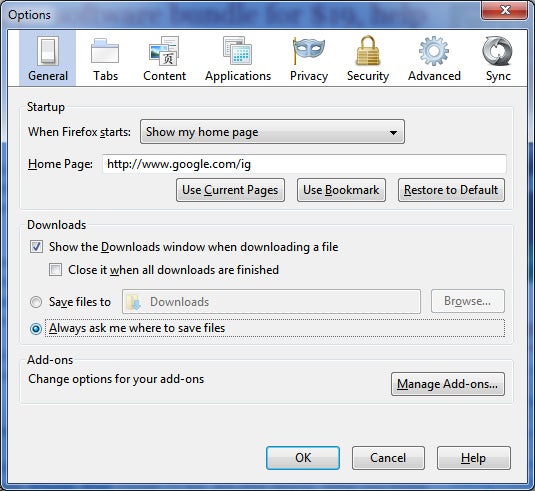
How to specify a location for saving downloadsStep 1. In Firefox, click Tools, Options, and then select the Generaltab. Note the Downloads section, where you have the option of choosing where all downloads should go by default. (Some people prefer the Desktop over the default Downloads folder.)
Step 2. Enable Always ask me where to save files, and then click OK. Now, every time you download something, Firefox will let you choose where to save it.

Step by Step: Chrome

Step 1. In Chrome, click the little wrench at top right, then Options, and then the Under the Hood tab.
Step 2. Scroll down to Downloads and check the box marked Ask where to save each file before downloading. (As with Firefox, you can change the default folder if you wish.)
One other clue to consider: If you don't pay attention to the names of the files you're downloading, you may not know how to find the right item, even if you succeed in navigating to the right folder. The solution: Sort all of the files by date, from newest to oldest. The top file is your most recent download

How to Install Windows 7 Without the Disc


How to Install Windows 7 Without the DiscMany computers ship without Windows 7 installation discs. Instead they come with "recovery" discs and/or partitions that claim to restore your PC to its "factory fresh" state, but include a ton of bloatware (free trials, media players, useless utilities, and the like) along with Windows. Removing each piece of bloat is time-consuming, and just not the same as truly starting fresh.
In this article, you'll learn how to make your own Windows 7 installation disc (or USB flash drive) and use the valid product key you already have to perform a fresh reinstallation. The following method is effective and legal, and doesn’t require a lot of technical expertise. (If you do need help with bloatware, however, read "What to Do With a New PC.")
However, we don't recommend that you delete your recovery partition or throw away your existing recovery discs. Although many people have had success with the following procedure, others have not. Some users have not been able to activate their copy of Windows even after entering a valid product key, while others own PCs that require software not included in a Windows 7 ISO. You have no way to know whether this procedure will work for you until you try, and you need a backup plan in case it doesn’t.
Also, save your files and drivers to external media before you start. Reinstalling Windows wipes out all personal data and causes a loss of functionality in devices for which Windows lacks an adequate built-in driver. Plan on loading the latest device drivers from media you create before reinstalling Windows.

Reinstalling Windows 7, Step by Step

1. Find your Windows 7 product key: Typically this 25-character alphanumeric string is printed on a sticker affixed to your PC or on documentation included with your PC. Alternatively, you can use a keyfinder program such as Magical Jelly Bean Keyfinder to pull your product key from the Registry. You need your product key to reinstall Windows.
Magical Jelly Bean Keyfinder helps you round up your serial numbers.Magical Jelly Bean Keyfinder helps you round up your serial numbers.
2. Download the ISO file for the version of Windows 7 you own:
The above links point to Digital River, a licensed distributor of Microsoft software. These downloads are each over 3GB, and your product key will work only with your edition of Windows, so make sure to select the right one.
3. Download the Windows 7 USB/DVD download tool. This utility lets you copy your Windows 7 ISO file to a DVD or USB flash drive. Whether you choose DVD or USB makes no difference; just confirm that your PC can boot to the media type you select.
4. Boot your computer using the Windows 7 DVD or USB flash drive. Follow the prompts to prepare the destination hard drive and install Windows.

What to Do With a New PC


What to Do With a New PCEveryone has their own I-just-bought-a-new-PC ritual. Some folks start by loading their pristine PC down with all their utilities and apps. Others immediately jump into the new games their old machine couldn't handle. A few others install Linux.
That’s all well and good--but before doing any of those things, you should take a few important steps. Prior to diving headfirst into your new laptop or desktop, read our favorite new-PC tips and tricks, all of which are designed to keep your system feeling brand-new for as long as possible.

Step 1: Update Windows

What to Do With a New PC: Update WindowsAfter you're done pulling the plastic off your new PC and plugging it in, the first thing you should do is grab all the Windows updates your new machine can handle. Of course, you'll need a network connection for that; just link your PC to your modem or router by inserting an ethernet cable, or if your PC supports Wi-Fi and you have a Wi-Fi network, open the Control Panel, go to Network and Sharing Center, and clickConnect to a network.
Once you’re connected to the Internet, go to the Control Panel, choose Windows Update, and clickCheck for updates to make sure Windows Update pulls in as many updates as possible.
Depending on how long your PC was sitting on a store shelf without an Internet connection, this process could take anywhere from a few minutes to more than an hour. Each update may require a reboot, and some updates prompt even more: You'll probably have to grab updates, reboot, and check Windows Update again for updates to those updates you just installed.
Unfortunately, we can't do much to help you speed up this step. However, you may want to read our tutorial about slipstreaming Windows 7 updates on a USB drive, which eliminates the need to download updates over and over. Placing the latest updates on a USB drive lets you install the latest Windows 7 updates as you run the Windows 7 installation disc. It’s especially useful if you're the administrator for a few PCs on your home or office network, as it cuts down the time needed to download and install updates on each machine.

Step 2: Uninstall the Crapware

SlimComputer uses a crowd-sourced database to recommend which apps you should install and which apps you should keep--but the recommendations aren't always useful.SlimComputer uses a crowd-sourced database to recommend which apps you should install and which apps you should keep--but the recommendations aren't always useful.Unless you built your PC yourself, it likely came with a whole bunch of preinstalled apps and utilities. Many of these are undoubtedly well-intentioned inclusions--and some might even be useful--but you don't have to hang on to your 30-day Norton AntiVirus trial if you know that you're just going to use Microsoft Security Essentials instead.
If you know exactly what to keep and what to get rid of, a deep uninstaller utility such as Revo Uninstaller is all you need. The free, basic version scans your system to ensure that it eliminates applications that Windows' built-in uninstaller sometimes misses.
However, determining what's crapware and what's worthwhile isn't always easy. PC Decrapifierdoes a good job of identifying a lot of the common crapware culprits--toolbars, trial-application installers, shortcuts for setting up old dial-up services, and so on. You get to review the list of recommended items to uninstall before you pull the trigger, so you don't need to worry about accidentally losing something you want to keep.
Alternatively, you could give SlimComputer a shot. Like PC Decrapifier, SlimComputer aims to take out the junk, but it uses feedback from other SlimComputer users to make recommendations and provide brief notes as to why a program may or may not be useful. As always, we’d balance out a lot of the user-supplied comments with a healthy dose of common sense, but they are a helpful point of reference for any applications you're on the fence about.

Step 3: Update the Drivers

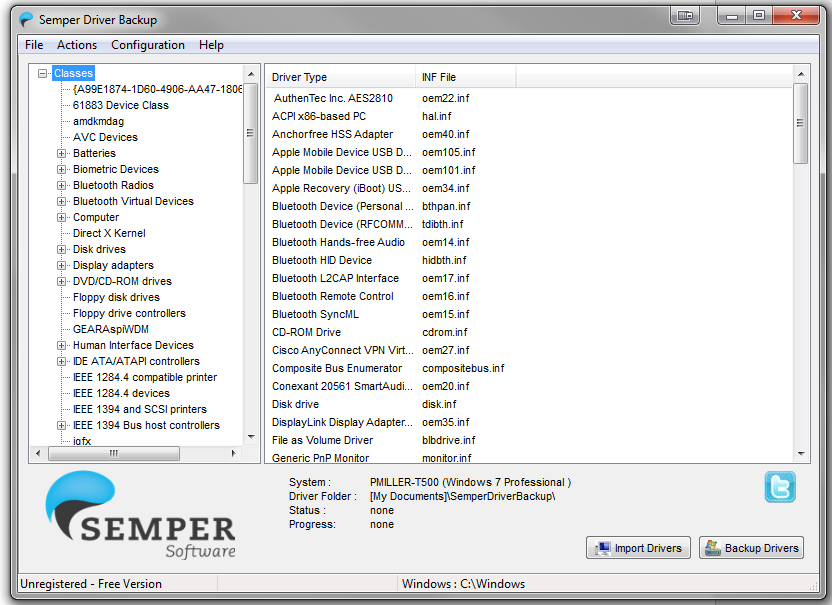
Semper Driver Backup can create a library of your drivers and back it up.Semper Driver Backup can create a library of your drivers and back it up.The drivers are what turn the collection of parts in your PC from a generic Windows-running box into a processing powerhouse. Your ideal driver setup, though, depends in part on your PC's configuration--and on your tolerance for risk.
Generally speaking, you want to have the newest drivers available for all your gear. For example, making sure your graphics card's drivers are up-to-date will usually fix bugs and enhance performance with each new revision, and you might not be able to perform basic functions such as networking or audio input/output without your motherboard's full set of current drivers. If you're still having problems getting certain devices to work, updating the BIOS might be in order.
If you stick around the PC scene long enough, however, you’ll inevitably come across a driver update that breaks something that used to work perfectly. That's why some people prefer to stay with whatever driver version works for them--and leave it at that until something doesn't work. Short of clinging to an older, working driver, you can fix many driver-related problems by rolling back to a previous driver version, or you can uninstall the updated drivers and reinstall (from scratch) a version that worked fine.
If you're on a new, store-bought Windows 7 PC and all of the component drivers are preinstalled, you're probably better off with the existing drivers (though you may want to check for BIOS and graphics-card driver updates for the performance benefits anyway). Also, you don't necessarily need to worry about finding drivers for everything on your PC: Windows has generic drivers available for USB drives, keyboards, mice, webcams, and so on.
On the other hand, if you're breaking in a PC that you made yourself, we recommend updating everything to the latest stable drivers available. If things aren't working seamlessly after that, find out whether the component manufacturer offers a beta driver that works better.
Once all your drivers are in working order, you'll probably never want to deal with this stuff ever again, so grab a driver-backup tool such as Semper Driver Backup or Double Driver. These tools make a quick copy of all your current drivers, so you can easily restore the drivers if (or when) something goes wrong.

Step 4: Install Everything at Once

Ninite lets you batch-install and update dozens of common useful Windows apps.Ninite lets you batch-install and update dozens of common useful Windows apps.By this point you're probably itching to install the applications and utilities you've grown accustomed to using on your previous machines. The hard part is remembering every single application you use--probably not difficult for those you work in on a daily basis, but a bit harder for the ones you touch only every week or month or so--and spending the time to seek out and download each and every one of them.
When it comes to tools that can help with this monumental task, we can't sing Ninite's praises enough. Head to that site, and you can view a huge catalog of common free apps--Web browsers, antivirus utilities, file-sharing and media-playback programs, and so on--and get them all bundled in one installer file. You just choose the software you want, download the custom installer, and download everything in one fell swoop. Ninite even selects the 32-bit or 64-bit version as appropriate for your PC, and it skips all the adware and toolbars that, ordinarily, you might install by accident while clicking Next over and over.
One more tip: Resist the urge to delete Ninite's installer once it's done working its magic. If you run it after you've already installed all of your apps, it will check for any updates and automatically download and install the ones you need.

Step 5: Disaster-Proof Your PC

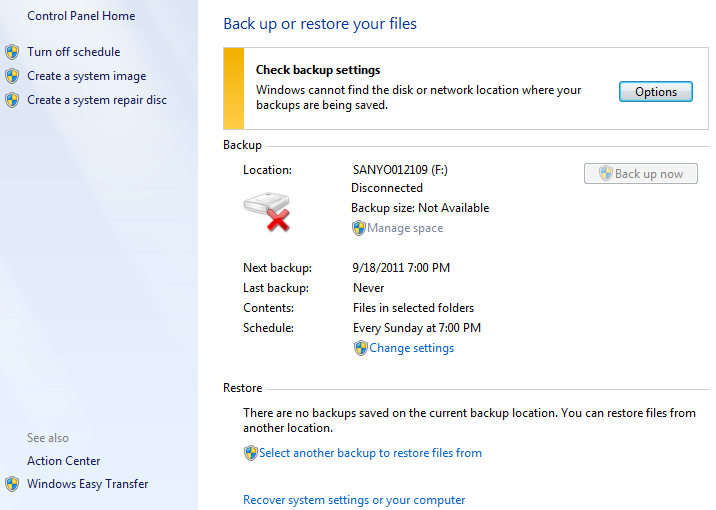
Windows Backup is a free, basic backup tool built into Windows 7.Windows Backup is a free, basic backup tool built into Windows 7.Congratulations! By now, your PC should be primed for action, just the way you like it. Get out of your seat and stretch for a minute. Then sit back down--you still need to do two things before the system is fully prepared for everyday use. You don't want to have to repeat this whole process if something goes wrong with your hardware or Windows installation, so this step will create a sort of “reset button” that brings your PC back to its ultimate state.
Take a moment to preserve your machine's pristine, work-ready existence with Macrium Reflect Free, which creates an image backup of your hard drive that you save to a backup drive. If anything terrible happens during your computing adventures, you can just restore the system from this image backup.
You should probably also set up an automated backup system if you haven't already. If you pay $40 for the Pro version of Macrium Reflect, it adds automatic incremental backups to that same image file; you won’t have to create a new one each time.
If you'd rather save the cash, you can use Windows 7's built-in Backup and Restore features instead. To do so, open the Control Panel, click Backup and Restore, and adjust the basic backup settings (location, frequency, backup directories, and the like). For more tips on disaster-proofing your PC, read Rick Broida's "Prepare Your PC for Future Data Disasters."
If you've read this far and followed all the steps, your new PC is now plenty prepared for the future. It’s time to take your new machine for a spin!

7 August 2012

How to Check PC Processor Speed

Have you ever been curious as to how fast your computer is, but forgot to check the box when you bought it? Would you like to know if your computer's processor is really performing up to its potential? Fortunately checking both the computer's processor type and finding out how it is performing is simple enough and by following these steps you'll find out how.


Instructions


    • 1
      Click on the "Start" button, click on control panel, click on "System" or "System and maintenance." This window will have your processor type and speed.
    • 2
      Check your processor speed by downloading CPU Speed Professional. Go online and download the free application (see Resources).
    • 3
      Install the application by double clicking on it.
    • 4
      Double click on "Test CPU Speed." When you do this, it will use the built-in algorithm to test see how well your processor speed is performing. For instance, a Dual Core AMD Athlon 64 bit 1.8 GHZ chip may actually only be performing at 1.65 GHZ.

6 August 2012

Vista Drive Icon


Vista Drive Icon, changes the drive icons shown in Windows "My Computer", to a nearly Vista drive icon, showing the drive's free space with a smooth colored horizontal bar. Well, not only that they have a more stylish look, but they also show the drive’s free space with the help of a bar placed underneath the icon. 
Vista Drive Icon replaces the old icons with the new ones automatically, so you just have to run the executable file and that’s basically it. As always, it’s better to create a restore point or make a backup before playing with the app, just to stay on the safe side.


OR

Are you using the Windows operating system older then Window Vista? If yes, then it means you have just dead icons for your drives, which does not provide you with any information about used space and free space available in the drives, and have an old fashion look. But here is an opportunity for you to get Window Vista style icons, which not only have modern stylish look but also provide you enough information about each drives consumed space and free space available. And it’s all in a graphical alive icon manner of each drive. Whenever you start using this tiny utility, I am sure you will be habitual and love it and can’t live without it. It is because whenever you require to check your drives space you does not require to open properties window of each drive. Simply look at the drives icon and you will get the idea of available free space and consumed space. But of course if you want to know the exact amount of consumed space and available free space then you have to go for drives property window. This utility launches with window and so you do not require to start it each time. And also not make your computer slower.

ITs lovely
    DOWNLOAD IT HERE

5 August 2012

Latest Theme For Window 7

If you are a fan of gurusbase or just a person that likes beautiful winter landscapes, you stumble into the right place, because I know that you really are going to like and enjoy these winter Windows 7 themes below. They all come with terrific wallpapers that you will want to download to decorate your Windows desktop right away. All these Windows 7 Themes are from Microsoft Website and you can find more by visiting this page Windows Personalization Gallery. 

4 August 2012

Microsoft Released Outlook.com, Awesome Interface and Features Which Is Real

I always use Gmail, because i love its service and features. But now Microsoft released outlook.com with awesome services. It looks extremely tempting both in terms of features and also the user-interface which I think is far superior to that of Gmail.

In this new feature added that is one step login. Means just connect your mobile phone to your Hotmail / Outlook account, you can sign-in from any computer without using your actual password. Click the “Sign in with a single-use code” link on the login screen and Microsoft will send you a temporary password in a text message that expires after first use. This is useful when you are logging from a public computer. Gmail has two-step verification which adds one more layer of security.


The most impressive thing about the new Outlook.com, other than the beautiful UI, is its speed.Speed is very very good. Now the other main thing is you have unlimited space, Gmail offers 10 GB of storage space for free accounts. But Outlook offers unlimited space.

Now you can recover your deleted folders. I am not sure how long Outlook keeps your deleted messages but this might be an extremely handy feature in case you accidentally empty the Delete folder.  Your Gmail account doesn’t offer any sort of message recovery.


Now no limit of attachments. You can send any amount of data in a single mail. It will also provide block domain function for spam mails. Same filter option like Gmail.

2 August 2012

How To Speed Up Windows Start Menu Items

An easy way to speed up the display of the Start Menu Items is to turn off the menu shadow.
1.Right click on an open area of the Desktop
2. Select Properties
3.Click on the View tab
Then uncheak SHOW DESKTOP ICON
YOU are done.

Microsoft Windows 7 system requirements

Here are the minimum Windows 7 system requirements Microsoft released on October 22.If you interest to run Windows 7 on your PC, these are the microsoft windows 7 system requirements:
Microsoft Windows 7 system requirements

Processor : 1 gigahertz (GHz) or faster 32-bit (x86) or 64-bit (x64)
RAM : 1 gigabyte (GB) RAM (32-bit) or 2 GB RAM (64-bit)
Hard Disk : 16 GB available hard disk space (32-bit) or 20 GB (64-bit)
Graphic : DirectX 9 graphics device with WDDM 1.0 or higher driver
Additional requirements to use certain features:
Internet access
Depending on resolution, video playback may require additional memory and advanced graphics hardware
Some games and programs might require a graphics card compatible with DirectX 10 or higher for optimal performance
For some Windows Media Center functionality a TV tuner and additional hardware may be required
Windows Touch and Tablet PCs require specific hardware
HomeGroup requires a network and PCs running Windows 7
DVD/CD authoring requires a compatible optical drive
BitLocker requires Trusted Platform Module (TPM) 1.2
BitLocker To Go requires a USB flash drive
Windows XP Mode requires an additional 1 GB of RAM, an additional 15 GB of available hard disk space, and a processor capable of hardware virtualization with Intel VT or AMD-V turned on
Music and sound require audio output
Product functionality and graphics may vary based on your system configuration. Some features may require advanced or additional hardware.
To see if your PC is ready for Windows 7, download the free Windows 7 Upgrade Advisor. It scans your PC for potential issues with your hardware, devices, and installed programs, and recommends what to do before you upgrade.

28 July 2012

How to Change System Sounds Scheme in Window 8

Windows 8 allows assigning sounds that will play when certain events occur on your computer. An event can be an action that you perform, such as logging on to your computer, or an action that your computer performs, such as alerting you when you receive new e‑mail. Windows comes with several sound schemes (a collection of related sounds) for common events. Follow the below given step by step procedure to access Windows sound settings.

1. First, from Metro Start screen search option, type: Control panel and press Enter. Than click Control panel. In the control panel items, select Hardware and sound.


2. From hardware and sound list, click and open Change system sounds, which is displayed under the SOUND.

3. Sound settings window pops up will come, where you can see list of options change the sound scheme, select different sounds for Windows events and uncheckPlay Windows Startup sound to disable it.

4. Now to change a system event sound, select and event, here I’ve chosen Program Error from the program event list, now as you can see in the sounds tab, it shows none which means the sound alert for this particular event is not set. To select a sound for this event, click on the dropdown arrow and you have a list of tones, select and then TEST to check if it suits or not, ensure to click on apply and OK for the changes to take effect.

You are done. Stay with us to get update.

27 July 2012

Microsoft Surface There price On Internet

Microsoft-Surface

Some Days ago hackers001 posted price of microsoft surface. A Swedish online retailer has posted the Microsoft Surface tablet on its site, with a price tag surpassing those of rivals such as the new iPad and Asus Transformer Pad Infinity. Hackers001 also conclude that cost will be $900-$1000.

According to Webhallen.com, the Surface tablet pricing will start at around £650 (that's about $1,000) for the 32GB Windows RT model – which is significantly more expensive than the majority of tablets on the market.

The price rises to a staggering £1,389 ($2,100) if you want the 128GB Windows Pro version – although at that price we can't see too many people jumping at the opportunity.

But One thing you will not get Keyboard. Adding insult to injury, it doesn't even look like you get the special keyboard attachment for the eye-watering prices quoted on the site.

Top 9 Simple Things Every Computer User Should Know How to Do

10.     We all know we should back up our computers, but it’s always one of those things that you’ll set up “one day”.  Setting up a ba...